Watch PC Guide 2 · Native Windows video with captions and transcript.
Add a song: quick entry or Full setup
Choose Songs → Add Song. The small dialog asks for Title and Artist. Add Song checks for an existing song and tries to find matching song material online. A confident available match supplies song material for review; otherwise choose a matching version or Use my own lyrics. If lookup is unavailable, the song can still be saved so you can type or paste your words. Internet lookup is optional, and downloaded words must be checked against your arrangement.
If the song already exists, Open preserves that song; Change details corrects the search; Add separate song deliberately creates another arrangement. Nothing is silently overwritten. For backing tracks, files, written charts or detailed preparation, choose Full setup before adding. Your title and artist carry into Song Info. An existing song's Edit also opens the full preparation workflow.
Quick Add does not establish that suggested words or chords are accurate, that recorded timing is reviewed, or that the song is Performance Ready. To add bracket chords, edit the lyrics deliberately and put each chord immediately before its changing word or syllable.
Finish, blockers and recovery
Finish can show One more thing before saving. The draft is kept. Follow Review section or the offered action to the exact conflict in the lanes, correct placement and replay. Do not rename or reorder reviewed sections to hide a timing conflict. Set music start, Details and options and Recovery history are offered where relevant. Restoring a revision is an explicit recovery choice.
Review flagged lyrics by listening
In Review, expand Review flagged lyrics. It shows the line, its issue, and Previous issue / Next issue. For a line with timing, Play passage auditions it and Select line in lanes reveals it for editing. Keep current timing is available only when that line has valid placement eligible for that choice; it is not a way to approve a missing, overlapping, out-of-order or out-of-recording line.
For a missing line, choose Listen near this line, listen near the surrounding words, and pause at its first word. Listening does not change timing. Choose Set line start here only after locating the entrance; check the ending and word positions in the lane and replay. Without a recording use Add recording; a device without supported playback cannot perform the listening step. Next issue navigates rather than silently approving the item.
Guided review → Previous check / Next check moves between the relevant checks. Review details → Review selects an issue in the lanes and keeps timing unchanged. No reported conflict is not proof that the song is performance-ready. Listen through repeated phrases, missing entrances, overlaps and the ending.
Open Show controls on the relevant lane: Audio reference / Beat grid for playback range, numbering and rebuilding; Chords for key, shifts and score alignment; Lyrics for vocal timing; Sections for headings and boundaries. If this is your situation… explains decisions. Use for next rebuild chooses a future analysis downbeat; Make a measure M1 renumbers the existing chart without moving audio or events. These are different operations.
Your reviewed words, section names, occurrence order and chord-to-word placement remain authoritative. MusicXML, MIDI, transcription and recording analysis support timing and alignment. They must not silently substitute another version or rearrange the reviewed sections. A recovered or supported entrance still needs listening; retain the saved version until you explicitly accept a proposed replacement. Reopening a workspace is not permission to rerun or overwrite reviewed preparation.
Documentation updated November 6, 2026. Windows uses Settings; mobile uses More.
Explore an already-prepared song
The companion video's California arrangement has reviewed chords and lyric timing. It does not demonstrate a fresh automatic preparation. California's tutorial tracks and song information are staged for distribution; they are not yet included in released installers.
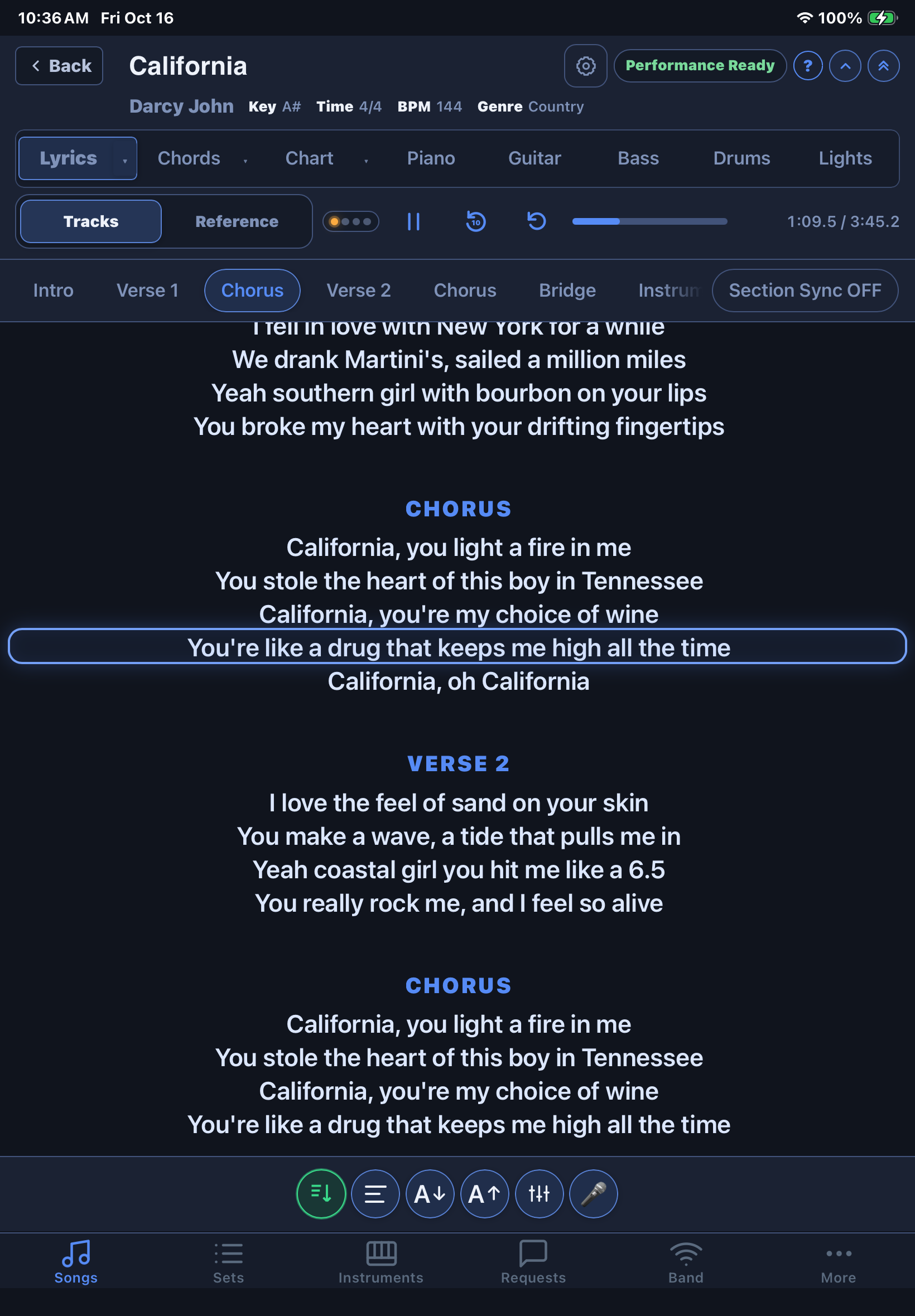
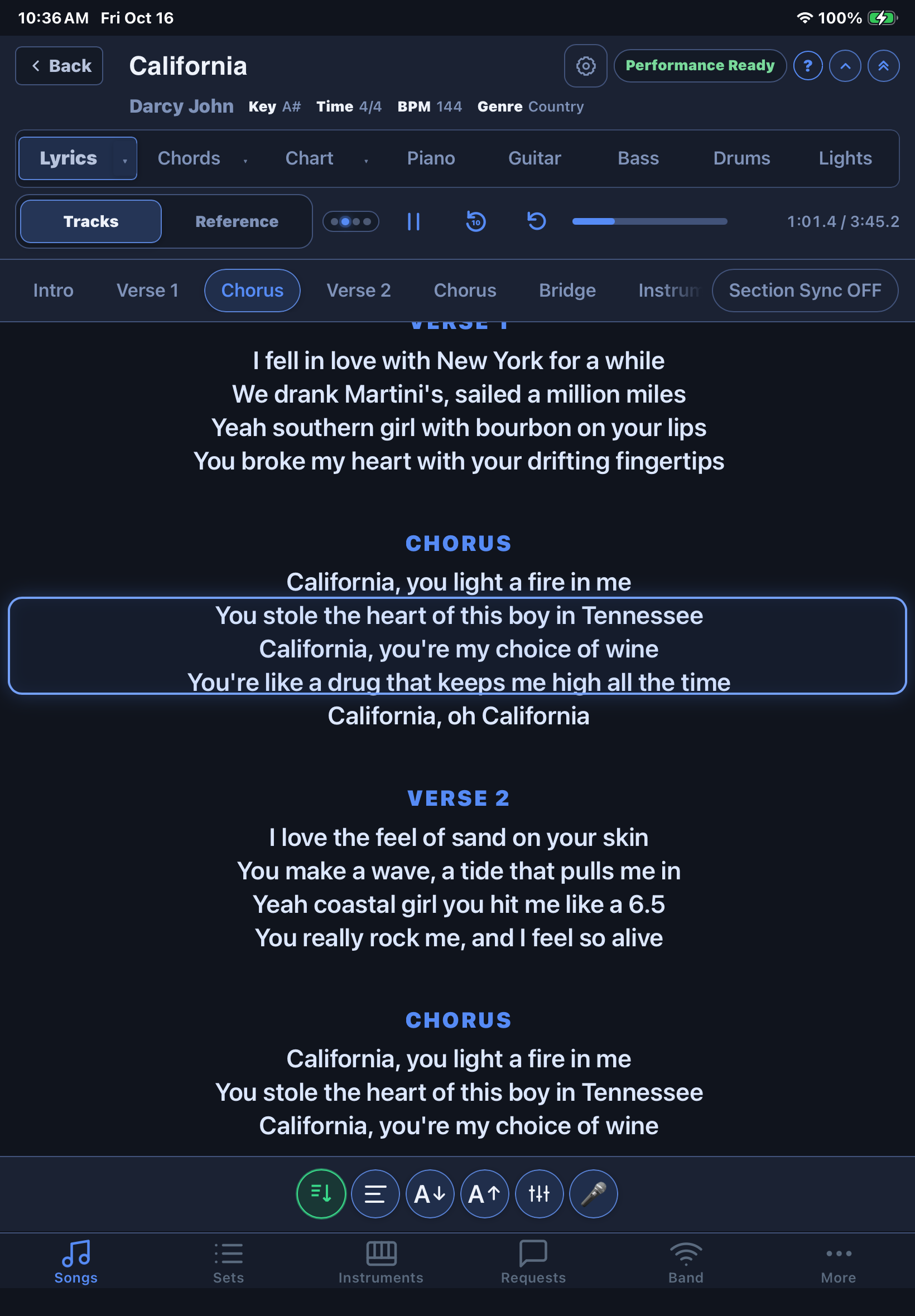
- Playback rewind moves back five seconds. Lyrics and Chords offer section, line, one-line, and three-line emphasis. These are reading choices, not timing edits.
- Chart shows the arrangement by section and measure. N° switches between chord names and numbers relative to the song key. Number charts are useful for musicians who must handle requests and key changes on the fly.
- In chord-name mode, flat/sharp transpose changes the saved chart and key, but not the backing audio or MIDI. Track Mix → Pitch changes backing audio separately. Capo changes the displayed shapes for this song on this device without changing its concert key.
- Piano, Guitar, and Bass show chart-based references, not transcriptions of the exact recorded parts. These screens are works in progress; custom song-lick lessons are a future goal.
- Piano has Stage, Keys, and Setup tabs, with Practice, Player, and Live modes. Keys shows falling MIDI notes approaching the keyboard. The companion video draft uses a separate MIDI example because California has no MIDI assignment. Practice can check a connected MIDI controller against a file, filter hands, slow playback, mute the practiced part, loop a passage, and wait for correct notes. Guide 3 of the video series will cover these controls in detail; the written Guide 3 below remains the manual-timeline guide.
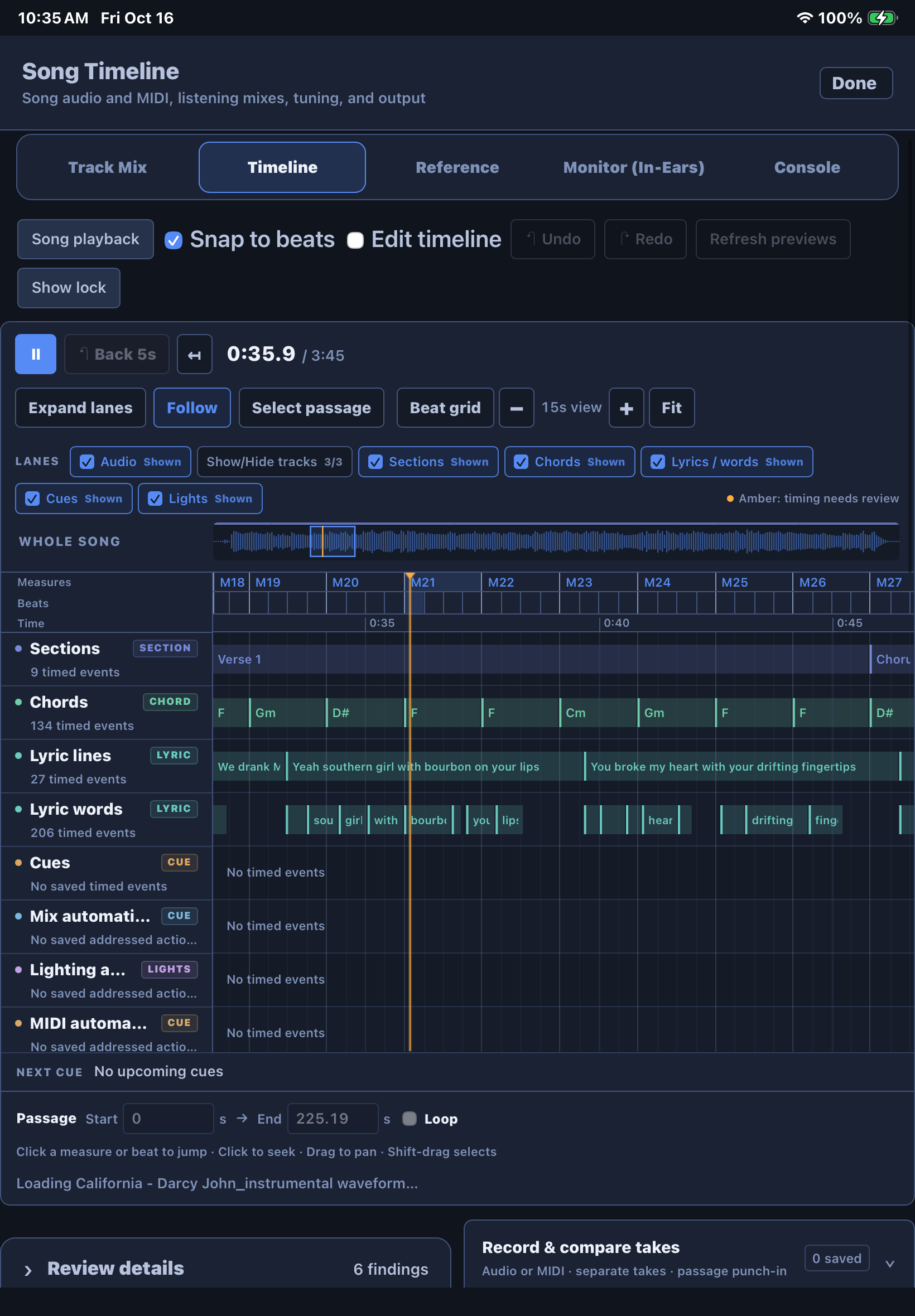
- Track Mix → Timeline brings the waveform, playhead, sections, chords, lyric lines, and words onto one time scale. The companion video draft gives an overview; detailed timing corrections are reserved for the next video.
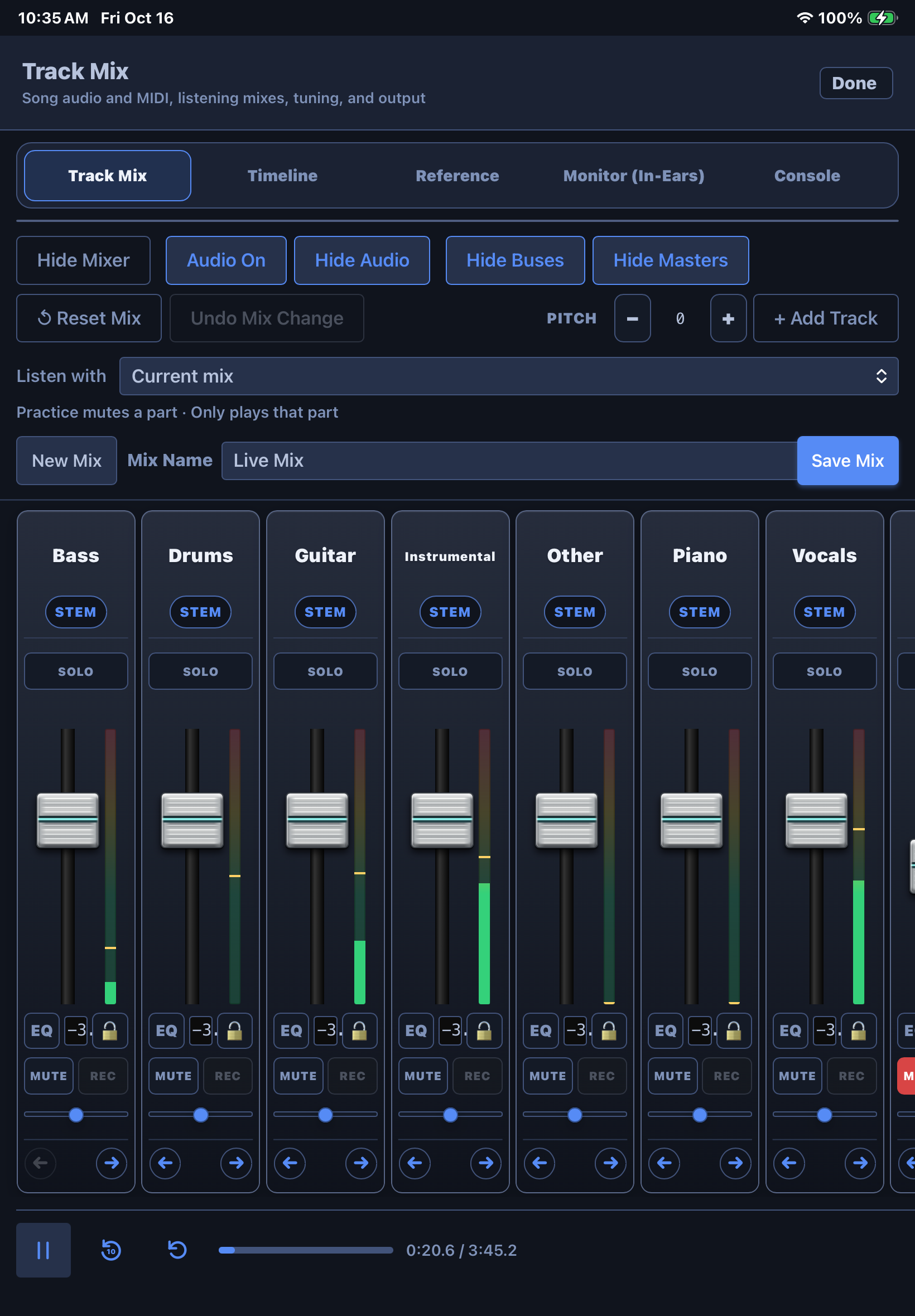
Released channel fader levels, master levels, and subgroup levels save with the song. Audio-stem mute and solo are temporary on a fresh load; initial mutes follow Track Name Defaults. A still-loaded player can retain its current state. Save Mix stores a named snapshot for explicit recall under Listen with, rather than making it load automatically. Update Mix replaces that snapshot. Subgroup mute saves a zero level; Master Mute and Dim clear on a fresh load. MIDI-part mutes save separately. Reset Mix writes track defaults; it is not Undo and does not reset pitch or speed. Practice/Only presets require separate stems or MIDI parts.
Individual stems: Choose Individual Stems in Playback copies synchronized MP3/WAV files, converts MP3 to WAV, and verifies a ZIP without changing original inputs. Select one version of each uniquely named part (up to 128 files, 2 GB each). Repeating the picker replaces the assignment. Confirm copied files and playback on the device you will perform with.
Default playback mix
Save Mix alone does not choose the startup mix. Select a snapshot under Listen with, then use Set as Default Playback for automatic recall on loading this song. Clear Default removes that override. A default snapshot can restore its stored mute and level choices; ordinary fresh-load mute rules apply without that override.
The earlier Guide 2 recording needs an updated saved-mix explanation and current Recorder navigation before it is promoted as a complete current walkthrough.
Before you begin
- Have clean lyrics with labeled sections.
- Use one audio file, individual MP3/WAV stems, or a stem ZIP. A ZIP is a package containing several files; individual stem import creates it for you. All stems must come from the same song version and start at the same point.
- Keep source files on local storage while preparing.
Prepare the song
- Open the song’s Edit action and confirm title and artist in Song Info.
- Expand Add files (optional) → Add Track / Change Track. Choose a recording/package, Choose Individual Stems for synchronized MP3/WAV inputs, or Get from Karaoke Version for owned material.
- Use the same arrangement and starting point for every stem. Individual import copies the inputs, converts MP3 to WAV and verifies a ZIP; it does not fix alignment or compression losses. Repeating the picker replaces the assignment.
- Open Lyrics & Chords and check the words, sections and chord positions. Review previews before Load into Editor and use formatting only after checking its preview.
- Choose Save & Continue to Review. Cuevera reuses usable timing or aligns working lyrics automatically. Supplied words and chords remain protected; no separate Analyze Song rail step is required.
- Listen through sections, chords, lyric lines and words. Make this measure M1… relabels bars without moving events. Check estimated positions; use Audio reference / Beat grid lane controls, Chords lane controls or lane-specific Show controls and situation help for deliberate corrections.
- Review optional Cues, Lights and Vocal Colors. Save & Continue to Finish, then Save Song. Reopen and test the mix, scrolling, pitch and later seeks.
- The prepared California video demonstrates a reviewed result, not a fresh automatic preparation.
Choose what playback highlights
For the current song, open Lyrics ▾ in Song View and choose the scrolling emphasis. To set the starting preference for this device, open Settings (Windows) / More (mobile) → Display → Backing Tracks. Enable Use backing tracks during performance and Enable scrolling when a backing track loads. Choose:
- Highlight section to emphasize the active section.
- Highlight line to keep the full lyrics visible and emphasize the line being sung.
- 1 line for a moving rectangle around the current line.
- 3 lines for a moving rectangle around the previous, current, and next lines.
You can also choose whether selecting a section repositions the backing track. These device-local settings save immediately and do not change the song’s saved lyric timing.
Preserve reviewed source material
Supplied words, line breaks, sections and chords are kept automatically. With audio, Save & Continue to Review loads usable timing or aligns the working words to the recording. The older Analyze Song screen and reference-source switches are not routine steps in the current flow. Listen through the Review lanes before approving an estimated position.
Make this measure M1… selects the first full measure while earlier measures remain as the intro. Audio, lyrics, chords, cues and reviewed timing stay at their current seconds. This relabeling is different from trimming playback or moving all chords. The Audio reference / Beat grid lane holds playback range and song-start tools; the Chords lane holds intentional musical corrections. Lane-specific Show controls and situation help contain alignment retries and advanced build/rebuild controls.
Working words, line breaks, sections and chords are preserved automatically. Save & Continue to Review loads timing or starts alignment. In lane-specific Show controls and situation help, retry alignment deliberately and listen to every uncertain passage; the former reference-source switches are not routine setup steps.
Repair lyric timing
In Review’s Lyrics tools, enable timeline editing and select the lyric line. Place lyrics live lets you mark entrances during playback with Enter; rewind returns to the last placed line for correction. Stop placement and replay the passage before saving.
Drag a lyric line’s right edge to its sung ending to distribute its words evenly across that range. Ctrl+Left/Right resizes the right edge by one measure; Ctrl+Shift+Left/Right fine-tunes it by 0.05 seconds. These are manual positions, not measured vocal timestamps. Undo restores the previous timing. Estimated word boxes still need listening and review.
Current screen examples
Test it
- Play Tracks from the beginning and confirm the first lyric arrives correctly.
- Check a middle and final section for synchronization.
- Open Track Mix and test mute, solo, levels, and routing for every stem.
- Try the selected scrolling emphasis and confirm its section or lyric highlight follows the track.
- Disconnect the internet and repeat a short playback test.
You are done when
- Every stem starts together and stays synchronized.
- Lyric lines and sections follow the recording.
- The chosen highlight or reading window is comfortable to follow.
- The saved mix is available offline.